
Help · Revit
Installing and licensing BA.TIVA Revit plugins
BA.TIVA for Revit is one installer that adds every BA.TIVA tool to a BA.TIVA tab in Revit. This guide covers what you need, installing, updating and uninstalling, and your licence: signing in, your free trial, subscribing, devices and the licence messages.
Installing takes about 5 minutes. Windows and Revit may each show a security warning along the way. Both are expected for new software from a small publisher, and this guide shows you exactly what to click. To learn a tool itself, read the Grid & Level Guard or Room Data Auditor user manual.
System requirements
| Item | Requirement |
|---|---|
| Revit | Each tool supports the Revit versions in the table below. |
| Windows | Windows 10 or 11, 64-bit |
| Account | A free BA.TIVA account at bativahq.com |
| Licence | A 14-day free trial or a subscription, for each tool you use |
| Internet | Needed to sign in, start a trial and subscribe, and for a licence check about once a day. Between checks the tools work offline, for up to 30 days. |
| Web browser | Your default browser opens for signing in |
| Administrator rights | Not needed to install just for yourself. Needed only to install for all users of the PC. |
| Tool | Revit versions |
|---|---|
| Grid & Level Guard 1.0.1 | Revit 2024; Revit 2026, update 2026.5 or later; Revit 2027. Revit 2025 is not supported in this version. |
| Room Data Auditor 1.0.1 | Revit 2024, 2026 and 2027. Revit 2025 uses the same build as Revit 2026, but hasn't been tested. |
| Model Cleanup 0.1.0 | Revit 2024, 2026 and 2027. Revit 2025 uses the same build as Revit 2026, but hasn't been tested. |
To check your Revit version and update, click ? at the top right of Revit, then About Autodesk Revit.
Privacy: licensing sends only your account, device and licence details to BA.TIVA. Nothing about your model or project ever leaves your PC.
Step 1: Download and unblock the installer
Close Revit before you start: the installer waits until Revit is closed.
- Sign in at bativahq.com and open the page of the tool you want, for example Grid & Level Guard or Room Data Auditor, or Account → Downloads. Tick the box to accept the Terms of Service, then click Download installer. The file is named
BATIVA-for-Revit-<version>-Setup.exe. - Open your Downloads folder, right-click the file and choose Properties.
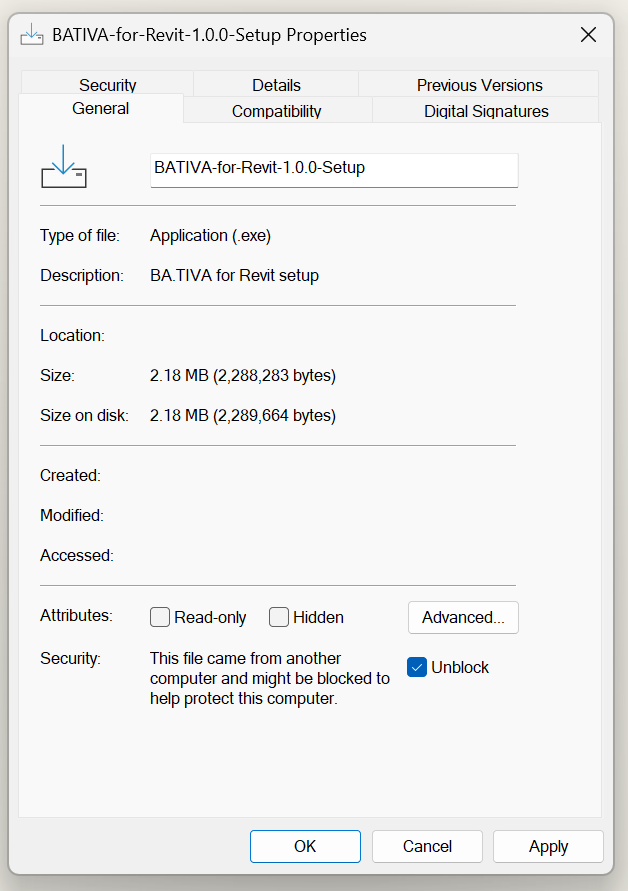
- On the General tab, tick Unblock at the bottom, then click OK.
If your browser stops the download and says the file isn't commonly downloaded, keep it. In Microsoft Edge, point at the download, click ⋯, then Keep, Show more and Keep anyway. In other browsers, open the downloads list and choose to keep the file.
If you don't see an Unblock box, Windows hasn't flagged the file. Go straight to Step 3.
Step 2: If Windows shows “Windows protected your PC”
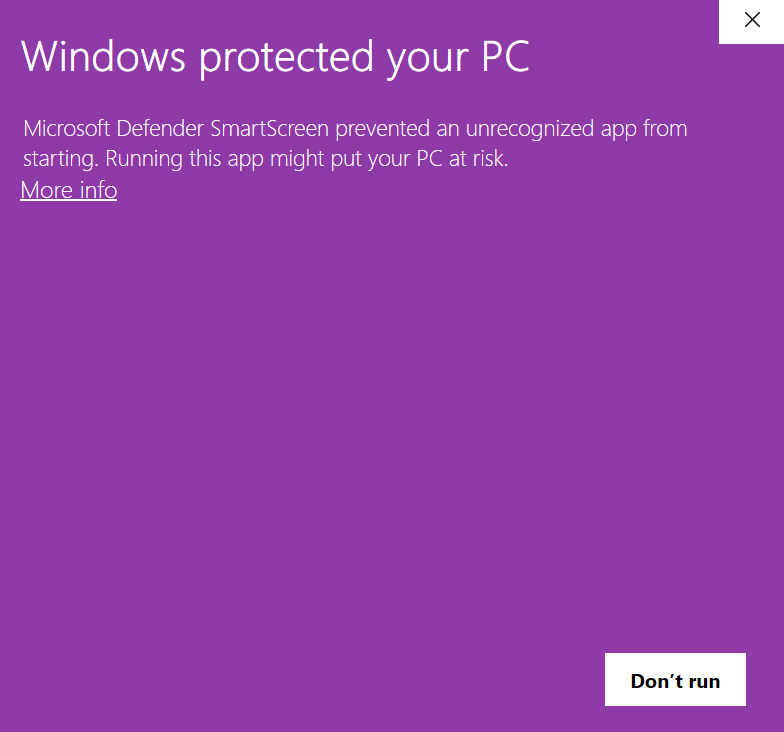
This window is Microsoft Defender SmartScreen. It appears for new software that Windows hasn't seen many times yet. It doesn't mean the file is harmful.
- Click More info.
- Check that the app is
BATIVA-for-Revit-<version>-Setup.exe. The publisher shows as “Unknown publisher” until BA.TIVA's installer is code-signed. - Click Run anyway.
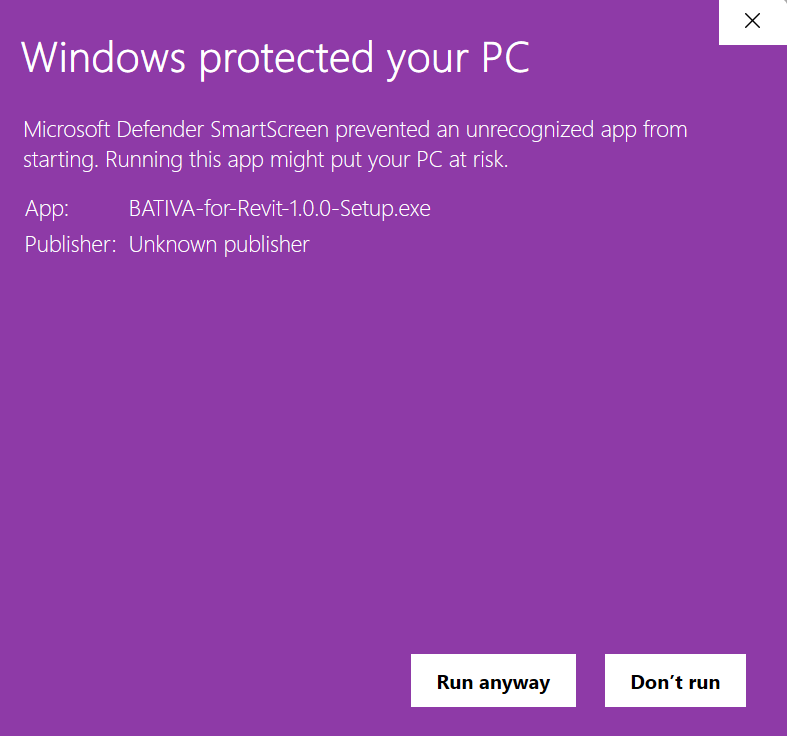
If there is no Run anyway button, your company has locked this setting. Ask your IT team to install the plugin for you (see For IT departments).
Step 3: Run the installer
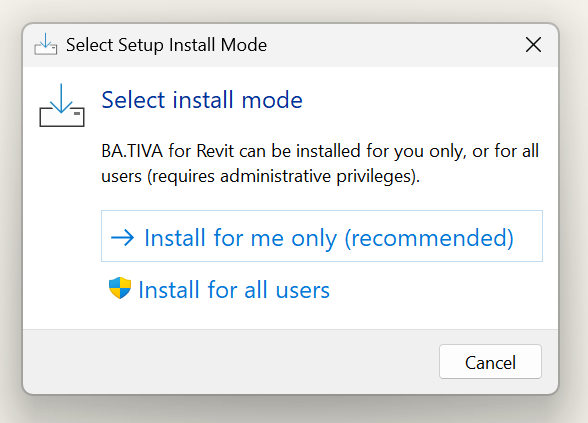
- Choose Install for me only (recommended). This needs no administrator rights. Choose Install for all users only if you're an administrator setting up a shared PC.
- If you chose all users, Windows asks “Do you want to allow this app to make changes to your device?” Click Yes.
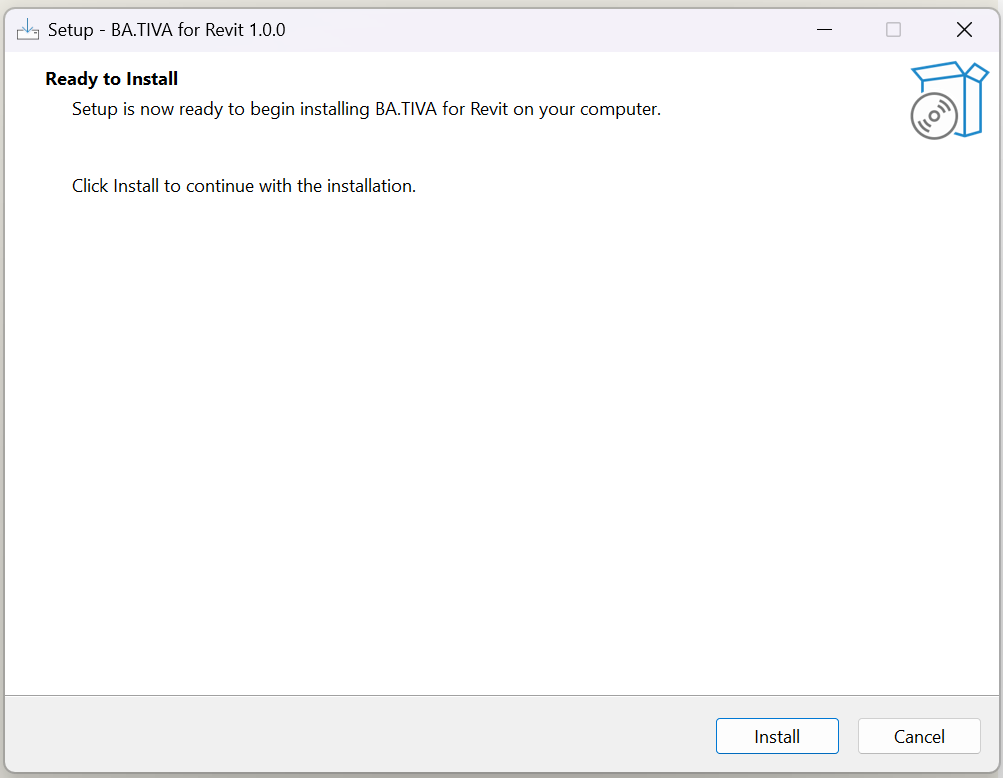
- On the Ready to Install screen, click Install.
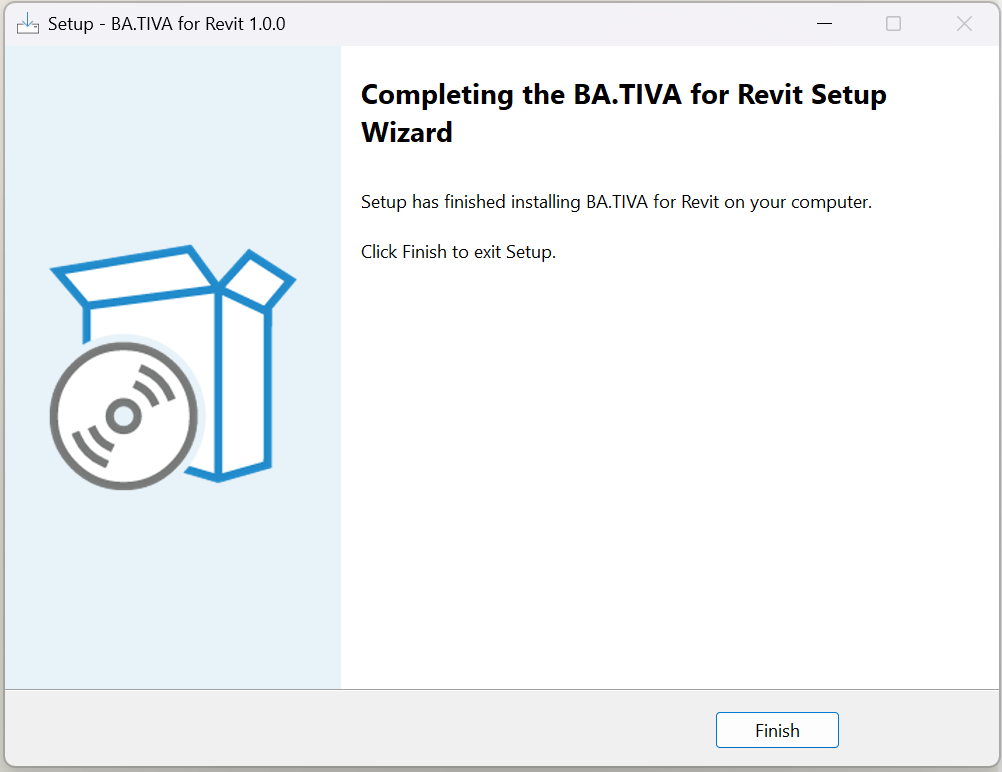
- When setup says it has finished, click Finish.
Every BA.TIVA tool in the installer is installed for every supported Revit version on your PC, so there's nothing to choose: your licence, not the installer, decides which tools you can use. If an earlier copy of a BA.TIVA tool is installed, such as a stand-alone installer or a tester build, the installer removes it first so Revit doesn't load it twice.
Step 4: Open Revit, allow the tool and sign in
Open Revit. The first time each BA.TIVA tool loads, Revit may show a Security – Unsigned Add-In window. Revit asks once for each tool.
- Check that the window names a BA.TIVA tool, such as Grid & Level Guard or Room Data Auditor.
- Click Always Load so Revit doesn't ask again. Load Once also works, but Revit will ask every time it starts.
- Open a project, open the BA.TIVA tab on the Revit ribbon and click the tool. In the panel that opens, click Sign in.
- Your web browser opens at bativahq.com. Sign in with your BA.TIVA account, then return to Revit.
- Click Start 14-day trial for a 14-day free trial, or carry on if you already have a subscription.
Licensing explains the licence bar and every message on it. To learn a tool itself, read the Grid & Level Guard or Room Data Auditor user manual.

Updating
Close Revit and run the newer BA.TIVA for Revit Setup. It replaces the older version in place, so you don't need to uninstall first. If a newer version is already installed, it says so and closes.
Updating never touches your projects: Grid & Level Guard's baselines stay where they are, and Room Data Auditor saves nothing in projects.
Uninstalling
- Close Revit.
- Open Windows Settings → Apps → Installed apps.
- Find BA.TIVA for Revit and click Uninstall.
This removes every BA.TIVA tool. Grid & Level Guard baselines saved in your projects stay in place, and so do your sign-in and logs in %LOCALAPPDATA%\BATIVA.
For IT departments
- Publisher: BATIVA Creative Ventures Limited, bativahq.com.
- What it installs: one Autodesk application bundle,
BATIVA.bundle, which Revit loads at start-up through itsPackageContents.xml.- Per user (no admin rights):
%APPDATA%\Autodesk\ApplicationPlugins\BATIVA.bundle - All users (admin):
%ProgramData%\Autodesk\ApplicationPlugins\BATIVA.bundle
- Per user (no admin rights):
- Silent install:
BATIVA-for-Revit-<version>-Setup.exe /VERYSILENTfor the current user, or/VERYSILENT /ALLUSERSrun as an administrator. - Network access: HTTPS to bativahq.com for sign-in and licence checks, about once a day. Sign-in opens the system browser and returns through a local address on
127.0.0.1. The tools work offline for up to 30 days. - Settings and logs:
%LOCALAPPDATA%\BATIVA. The installer writes a log to%TEMP%namedSetup Log <date>.txt. - Code signing: the installer isn't code-signed yet, so Windows SmartScreen and Revit both warn on first use. Check the download against its SHA-256 checksum, also shown under Release notes and checksum beside the Download button:
- Version 1.0.0 (Grid & Level Guard 1.0):
ab8da3a5760d2477757d3e1985953e149f6845d6b3e1bc3a1b6e76fb50b7c9ac - Version 1.1.0 (Grid & Level Guard 1.0 and Room Data Auditor 1.0.1):
cd5413cc8a2a35f2659fe77a45e2a4056ddc7698d10401876bfd57a67bfe412b - Version 1.2.0 (Grid & Level Guard 1.0.1, Room Data Auditor 1.0.1 and Model Cleanup 0.1.0):
8415b082d30c1d45ff1222705c5d0342f797cd622be7882aee0fb4c6a059777e
- Version 1.0.0 (Grid & Level Guard 1.0):
Licensing
You sign in with your BA.TIVA account, then use a 14-day free trial or a subscription for each tool. There are no licence keys, and the trial needs no card. Each tool shows your licence in the licence bar at the top of its panel.
Sign in and start your trial
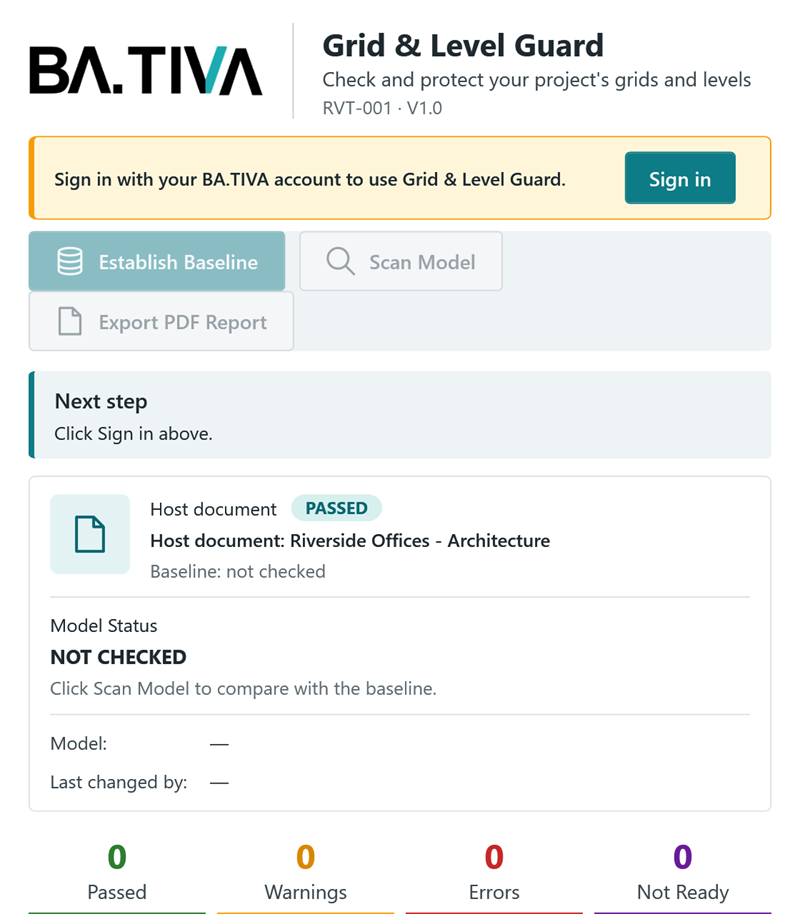
- Open the tool's panel. The licence bar says, for example, Sign in with your BA.TIVA account to use Room Data Auditor. The tool's main buttons are switched off until you have a licence.
- Click Sign in. Your web browser opens at bativahq.com. Sign in, or create an account there. When the page says You're signed in to BA.TIVA, return to Revit. You have 5 minutes to finish.
- Click Start 14-day trial. The licence bar now says Trial: 14 days left.
- One sign-in for every tool. You sign in once on each computer. Every BA.TIVA tool, in every Revit version on that computer, shares the sign-in.
- Each tool has its own trial, once per account and once per computer. A trial starts only when you click Start 14-day trial, not when you sign in.
- You can also start a trial on the tool's page at bativahq.com: click Start 14-day trial. No card is needed.
Subscribe
- Click Subscribe in the licence bar, or open the tool's page on bativahq.com.
- Under Billing, choose Monthly or Annual. Annual shows how much you save.
- Under Pay by, choose Card (renews automatically) or, where offered, Direct bank transfer (you pay for each period yourself).
- Click Subscribe and complete the payment.
- Return to Revit. The licence bar updates by itself within about a minute, or click Check again.
When it worked, the licence bar says Subscribed. Renews <date>. If you pay by bank transfer, the subscription starts when your transfer is confirmed, the licence bar says Subscribed until <date>., and from 7 days before each period ends your account asks you to pay for the next one.
- Subscribing during your trial doesn't cut it short: the trial carries on, and the paid period and the first charge start when it ends.
- Cancel any time from your account, and keep access to the end of the period you've paid for. Manage your plan and payment card there too.
- The 14-day refund policy in the Terms of Service applies to a subscription's first paid period.
- If a renewal payment fails, the licence bar says Payment failed. Update your card by <date> … You have 7 days' grace: click Update card, then Check again.
Devices and working offline
- 3 computers per person. All the Revit versions and BA.TIVA tools on one computer count as one. The same PC used under another Windows user counts as another computer. To move to a new computer, deactivate an old one under Manage devices, then click Check again on the new one.
- Offline for up to 30 days. The tools check your licence when Revit starts and about once a day. Between checks they work offline. If you stay offline, the licence bar warns you 7 days before it needs to connect.
- Sign out (in the licence bar, beside your account) signs this computer out of every BA.TIVA tool. The computer stays registered as one of your devices until you deactivate it on the website.
When the licence is not active
The panel still opens, the licence bar turns amber and says why, and its button says what to do. Nothing about licensing changes your model.
- Grid & Level Guard: Establish Baseline, Scan Model, Accept change, Reject change, Select in Revit and Export PDF Report are switched off, and Next step says what to click. Baselines saved in your projects are never changed or removed.
- Room Data Auditor: Scan Model, Select in Revit and Export PDF Report are greyed out; hovering over one shows Needs a licence: see the licence bar above. Results already in the panel stay there.
Licence messages
Each message names the tool, shown here as <tool>, and dates show in the form 21 Oct 2027. The tool works in the first five rows. In the rest, do what the last column says.
| Licence bar says | What it means | What to do |
|---|---|---|
| Trial: n days left. | Your trial is running. | Nothing. To keep using the tool afterwards, click Subscribe. |
| Subscribed. Renews date. | Your subscription is active and renews on that date. | Nothing. |
| Subscribed until date. | Your subscription is active and won't renew by itself, for example because you pay by bank transfer. | Pay for the next period, or renew, before that date. |
| Licensed until date. | BA.TIVA has given you a licence until that date. | Nothing. |
| Payment failed. Update your card by date to keep using <tool>. | A renewal payment failed. You have 7 days' grace, and the tool keeps working until that date. | Click Update card, then Check again. |
| Sign in with your BA.TIVA account to use <tool>. | Nobody is signed in on this computer. | Click Sign in. |
| Start your free 14-day trial of <tool>. | You're signed in and haven't had this tool's trial. | Click Start 14-day trial. |
| Your <tool> trial has ended. | The 14 days are over. | Click Subscribe. |
| Your <tool> subscription has ended. | The subscription was cancelled or not renewed. | Click Subscribe. |
| You've already used your <tool> trial. Subscribe to keep using it. | Your account has had this tool's trial. | Click Subscribe. |
| The <tool> trial has already been used on this computer. Subscribe to use it. | Another account has had this tool's trial on this computer. | Click Subscribe. |
| Subscribe to use <tool>. | Your account has no licence for this tool, and no trial is offered. | Click Subscribe. |
| Your BA.TIVA for Revit licence is already active on three devices. Deactivate one on the BA.TIVA website, then check again. | Your licence is in use on 3 computers. | Click Manage devices, deactivate a computer you no longer use, then click Check again. |
| This computer can't use your BA.TIVA licence. … | BA.TIVA has refused this computer. The rest of the message says why. | Click Manage devices, or contact support. |
| Verify your email address using the link BA.TIVA sent you, then check again. | Your account's email address isn't verified yet. | Click the link in the email, then Check again. |
| Connect to the internet so BA.TIVA can check your <tool> licence. | The computer has been offline too long, or its clock was set back by more than a day. | Connect, then click Check again. |
| BA.TIVA couldn't be reached to check your <tool> licence. Check your internet connection. | There's no connection, and no saved licence on this computer. | Check your connection, then click Check again. |
| Your <tool> licence has been withdrawn. Contact BA.TIVA support if this is unexpected. | BA.TIVA has withdrawn the licence. | Contact support if you did not expect it. |
| This BA.TIVA account can't use BA.TIVA software. Contact BA.TIVA support. | The account is suspended. | Contact support. |
A second line may appear under the message as a warning while the tool still works, for example Your <tool> trial ends on <date>. Subscribe to keep using it. (3 days before the end) or Connect to the internet by <date> to keep using <tool>.
Troubleshooting
| Problem | What to do |
|---|---|
| No BA.TIVA tab in Revit | Check your Revit version is supported (see System requirements). If you installed while Revit was open, close it and run Setup again. Restart Revit and choose Always Load when asked. |
| Installer says “Revit is running” | Save your work, close every Revit window, then click Retry. |
| Installer says it's already installed for all users | Run it again and choose Install for all users, or uninstall the old copy from Settings → Apps first. |
| Installer says a newer version is already installed | You already have a newer version. Nothing needs doing. |
| Revit says the add-in failed to load | Repeat Step 1 (Unblock), reinstall, then restart Revit. |
| Clicked Do Not Load by mistake | Close and reopen Revit. If Revit doesn't ask again, reinstall. |
| No Run anyway button on the Windows warning | Your company manages this setting. Ask IT to install it (see For IT departments). |
| Sign-in timed out or was cancelled | Click Sign in again and finish in the browser that opens, within 5 minutes. |
| Windows couldn't open your web browser | Set a default browser in Windows Settings, then try again. If the message gives an address, open it in your browser yourself. |
| Subscribed on the website, but the panel still shows the trial | Click Check again. |
| Tool says you've reached the device limit | Sign in at bativahq.com and remove a PC you no longer use under Manage devices, then click Check again. |
| Tool says an online check is required | Connect to the internet and click Check again. The tools need to check in at least every 30 days. |
| Any other licence message | See Licence messages. |